TL;DR: The browser relay is a Chrome extension that lets your AI control your actual browser. It sees what you see: login sessions, cookies, open tabs. Install the Node Host, load the Chrome extension, and your AI can click, type, and read any tab you activate. About 10 minutes on the same machine where OpenClaw is installed.
I used Puppeteer for browser automation for about four months. It worked, mostly. But it opened a separate invisible browser that ate more and more memory every day. After 48 hours, it had piled up to 6GB of wasted RAM. I wrote a daily restart script and moved on.
Then I tried the browser relay. It controls my real Chrome. The one with my login sessions, saved passwords, and extensions already loaded. No separate browser. No memory problems. And because the AI works with my actual tabs, it can interact with pages I'm already logged into, something Puppeteer could never do.
How the browser relay works
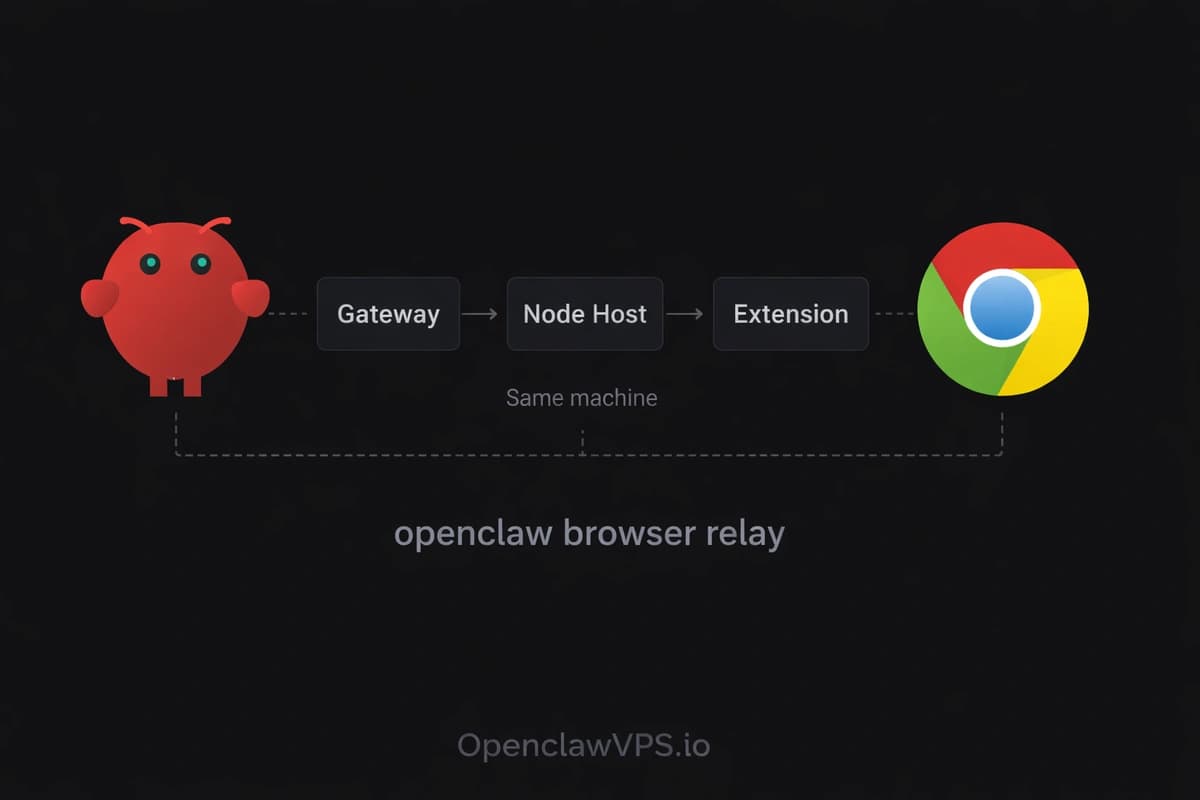
Two pieces connect your OpenClaw gateway to your Chrome browser, both running on the same machine.
The Node Host is a small background program that talks to your gateway. The Chrome extension plugs into your browser and listens for instructions from the Node Host. When your AI wants to click a button or read a page, the request goes: Gateway → Node Host → Chrome extension → your browser.
That's it. Everything runs locally on the machine where OpenClaw is installed. No remote connections, no tunnels, no extra network setup.
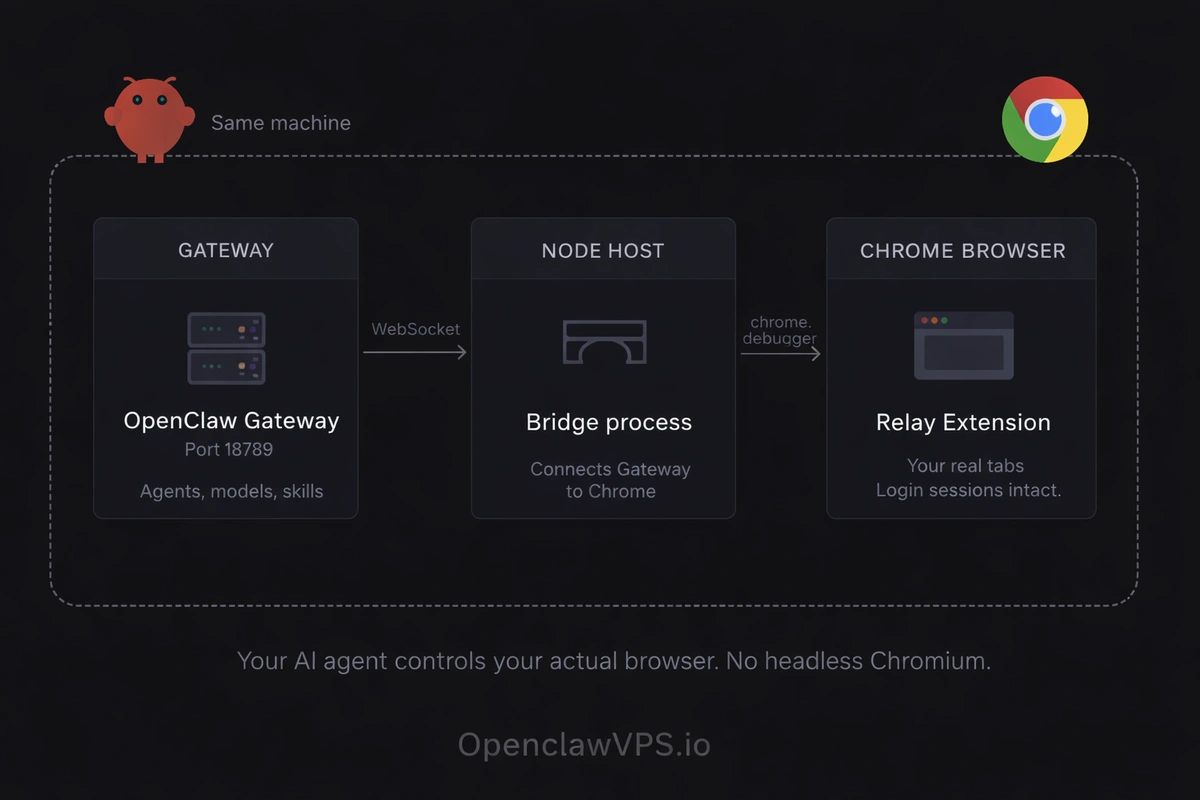
Step 1: Install the node host
The Node Host is the bridge between your OpenClaw gateway and your browser. On the machine where OpenClaw is installed:
npm install -g openclaw@latest
export OPENCLAW_GATEWAY_TOKEN="<your-gateway-token>"
openclaw node run --host localhost --port 18789 --display-name "My Chrome"
Your gateway needs to approve this new connection:
openclaw nodes pending
openclaw nodes approve <requestId>
The Node Host needs to stay running. If you close the terminal, it stops. Use tmux to keep it alive in the background:
tmux new -s nodehost
openclaw node run --host localhost --port 18789 --display-name "My Chrome"
Press Ctrl+B then D to leave it running and get your terminal back.
Step 2: Install the Chrome extension
This is the part that touches your browser. Same machine:
openclaw browser extension install
openclaw browser extension path
That second command prints a folder path. Copy it, then:
- Open Chrome, go to
chrome://extensions - Turn on "Developer mode" (top right toggle)
- Click "Load unpacked"
- Select the folder path from the step above
- Pin the extension to your toolbar
Now connect the extension to your Node Host. Right-click the extension icon and choose "Options." Enter your gateway port (default is 18789) and your gateway token. Hit save.
Open any tab you want the AI to control and click the extension icon. The badge shows what's happening:
- ON means connected and working
- … means trying to connect (give it a few seconds)
- ! means can't reach the relay (check that the Node Host is running)
If you see "ON," that tab is now visible to your AI assistant.
To check it's working:
openclaw browser --browser-profile chrome tabsYou should see the tabs you activated. If nothing shows up, check that the Node Host is still running and the badge shows "ON."
What your AI can do with the browser relay
Once connected, the relay isn't just page reading. Your AI gets full control of the tabs you activate.
- Click, type, scroll. Go to any URL, click buttons, fill in text fields, switch between tabs. OpenClaw numbers every clickable element on the page automatically, so the AI just says "click element 7" instead of needing to understand the page's code.
- Fill out forms. Text fields, checkboxes, dropdowns, file uploads. I use this for repetitive admin forms. The agent reads the page, figures out what goes where, and fills everything in one pass.
- Read and extract data. Pull text from pages, grab data from tables, wait for content that loads slowly. Because it's your real browser with your real cookies, the agent can read pages behind a login without needing separate login scripts.
- Take screenshots and export PDFs. Full-page captures or specific sections. PDF export from any page. Good for grabbing reports from dashboards.
- See browser data. Cookies, saved data, console logs, network requests. The agent sees what your browser's developer tools see.
- Fake different devices. Pretend to be an iPhone, change location, set a custom screen size. Useful for testing how sites look on mobile through your skills pipeline.
The browser automation skills pair well with the relay for structured web workflows.
Why I switched from Puppeteer
Puppeteer still makes sense for some things. If you need a completely separate, isolated browser for scraping with no access to your personal data, use Puppeteer. Same for automated pipelines that run without a screen.
But for daily browser automation on my own machine? The relay wins.
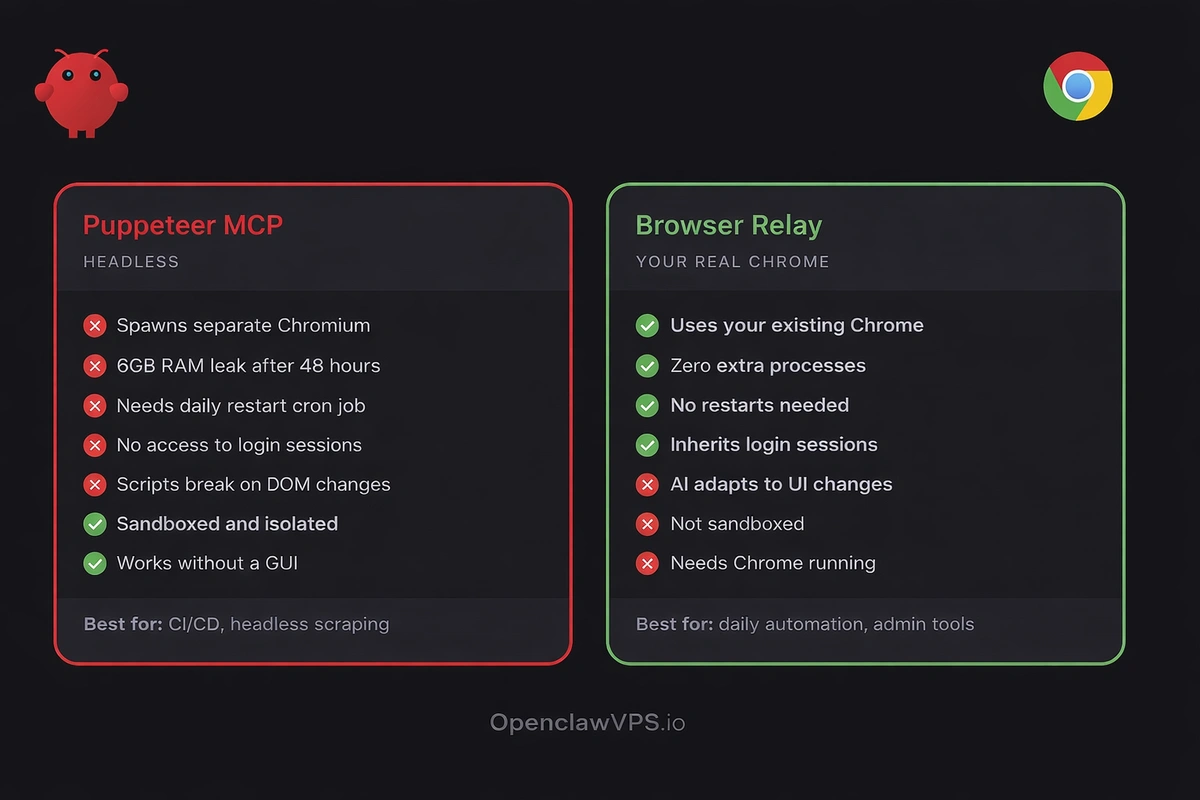
Puppeteer opened extra browser windows that leaked memory. 6GB of wasted RAM after 48 hours. The relay doesn't open anything new, it just rides on the Chrome I already have open.
Login state was the other headache. Every Puppeteer script needed its own login flow. Cookies expired, logins broke, CAPTCHAs popped up. The relay inherits whatever Chrome already has. If I'm logged into my admin dashboard, the agent is too.
The smart element detection also matters. Puppeteer scripts break when a website redesigns its layout. The relay identifies buttons and links by what they look like and where they are, not by code names that change. A button that got renamed in an update still gets clicked.
What to be careful about
The relay gives your AI access to your real browser. That's the whole point, but it's also the risk.
Don't activate the extension on banking tabs. Don't activate it on email with sensitive content visible. Don't activate it on anything you wouldn't want an AI model reading.
The agent can see and interact with everything on any tab where the badge shows "ON." Click the icon again to turn it off for that tab when you're done.
One tip from the official docs: create a separate Chrome profile just for relay work. That way your personal bookmarks, autofill data and saved passwords stay in your main profile, completely out of reach.
For internal tools and admin dashboards, the relay is perfectly fine. For automating things on trusted websites, also fine. For anything with passwords or sensitive info visible on screen, turn it off.
Common issues
Extension goes dark. If Chrome updates or the extension crashes, the badge disappears. Click it again to reconnect. This happens maybe twice a month.
New tabs aren't visible. The extension only sees tabs where you clicked the icon. If you open a new tab, click the extension icon on it. Tabs opened before the extension loaded aren't automatically picked up.
Node Host stops running. If the terminal closes, the Node Host stops and your gateway can't reach your browser. Use tmux (shown in Step 1) or set it up as a background service.
Extension breaks after an OpenClaw update. When you upgrade OpenClaw, run openclaw browser extension install again and then go to chrome://extensions and click Reload on the relay extension. The old version doesn't update itself.
Relay disconnects on page navigation. Sometimes the relay detaches when a page does a full reload or redirect (not just in-page clicks). This is a known bug. If the badge flips from "ON" to "!" after a page loads, click the icon again to reattach.
Get started
The whole setup takes about 10 minutes. Two steps: Node Host and Chrome extension, both on the same machine. Once it's running, your AI can do anything you can do in Chrome, fill forms, read dashboards, pull data and take screenshots. No extra browser windows eating your RAM.
If you want to trigger browser automation from your phone, connect Telegram and message your agent. Compared to how other platforms handle browser automation, most still rely on headless Puppeteer with all the memory and login problems that come with it.