TL;DR: OpenClaw skills extend what your agents can do. Install from ClawHub with openclaw skills install <name>, from the UI in Settings → Skills, or manually by dropping a SKILL.md into ~/.openclaw/skills/<name>/. Vet everything first. ClawHub had 341 malicious skills flagged in Feb 2026. My daily drivers after testing 30+: Capability Evolver, GOG, Tavily, and Obsidian.
Out of the box, an OpenClaw agent can chat. That's it. It can't search the web, can't read your files, can't touch your calendar. It just sits there and talks. Good enough to be a basic AI assistant, not good enough to be a useful one. Skills are the third component in the OpenClaw architecture walkthrough — body, brain, tools, and instructions — and they are the layer this guide is about.
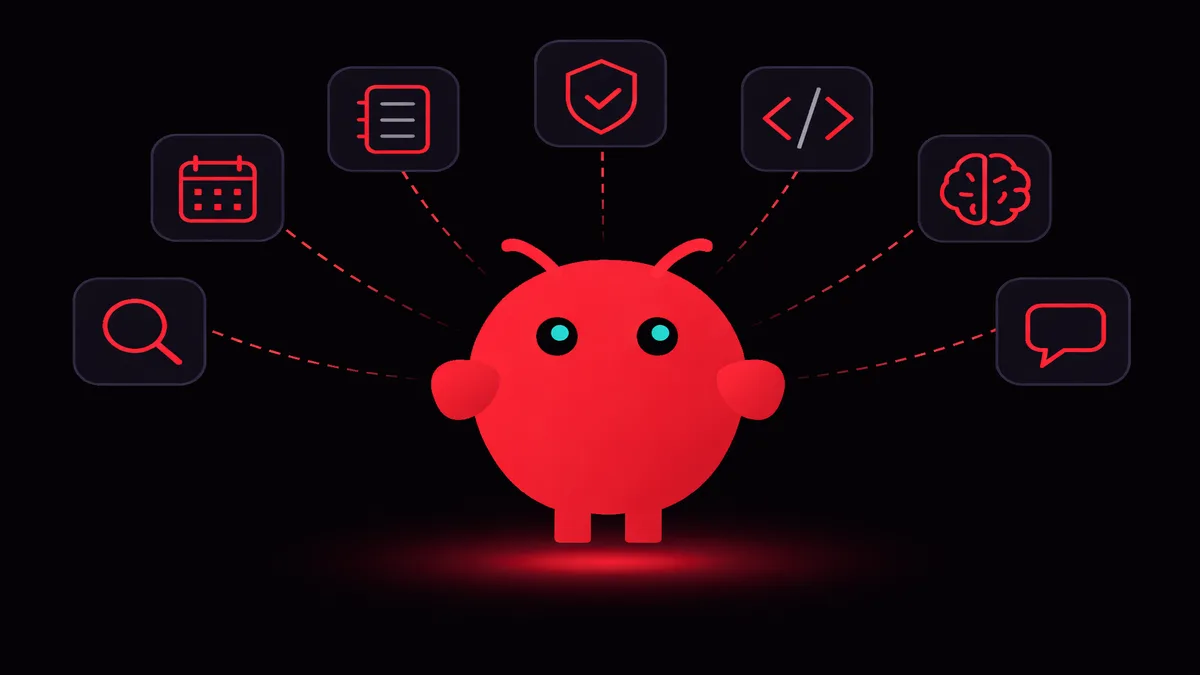
Skills fix that. They're instruction files that tell your agent how to use new tools, follow specific workflows, or behave differently in certain situations. Think of them as loadable behaviors. If you've already set up agents, skills are how you make them actually useful instead of just conversational.
The problem? ClawHub (the skill registry) has over 3,200 skills. Most are junk. Some are actively dangerous. I spent a month installing everything that looked promising, and about 8 survived the cut. I'll get to those at the end. If you're comparing OpenClaw's skill ecosystem with other platforms, there's a full breakdown available.
Browse our full skills marketplace to find the right skill for your workflow. Or keep reading for the three install methods and how to spot the skills you shouldn't touch.
How skills actually work
A skill is just a folder with a SKILL.md file inside it. That's it. The whole thing.
When your agent starts, OpenClaw reads every SKILL.md in ~/.openclaw/skills/ and injects the contents into the agent's system prompt. The frontmatter tells OpenClaw what the skill is called, what version it's on, and what MCP tools it needs. The markdown body? That's the actual instructions your agent follows at runtime.
One thing that trips people up early: skills eat tokens. A 2,000-word skill burns roughly 3,000 tokens per message. Stack ten fat skills and your context window is half gone before anyone says a word. The model you're running has a fixed context window, and skills share that space with your conversation history.
I keep 4-5 active at any time. The rest stay disabled until I need them.
Tired of managing skill configs, gateway restarts, and token budgets on your own server? OpenClaw VPS comes with skills pre-configured and a dashboard that handles token budgets visually. Plans start at $19/month.
Method 1: ClawHub CLI
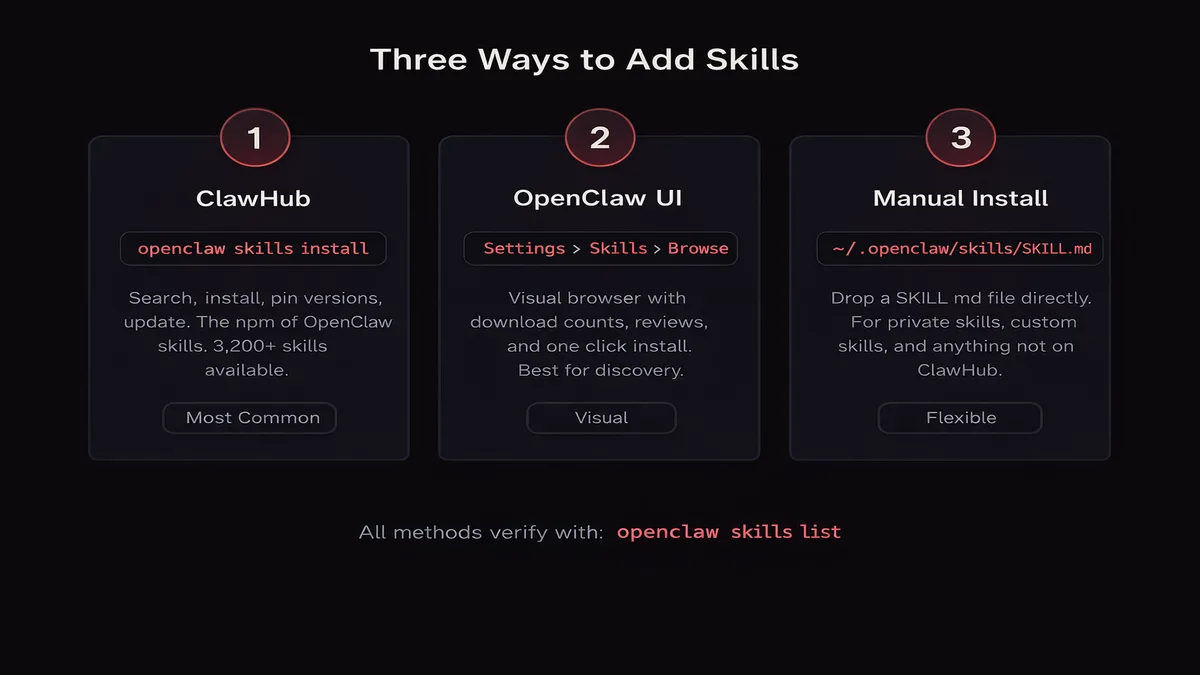
ClawHub is the package manager for OpenClaw skills. Works like npm: search, install, version-pin, update. This is the method you'll use 90% of the time.
Install a skill:
openclaw skills install tavilyThat pulls the latest version of the Tavily search skill into ~/.openclaw/skills/tavily/. Done.
You can also install through npx if you prefer:
npx clawdhub@latest install tavilyPin to a specific version when stability matters:
openclaw skills install tavily@1.2.0Verify what's installed:
openclaw skills listOutput looks something like this:
NAME               VERSION   STATUS    TOKENS
tavily             1.2.0     active    ~850
capability-evolver 3.1.0     active    ~1,200
gog                2.0.4     active    ~950
obsidian           1.5.1     active    ~600
memory             1.0.2     disabled  ~1,400
That TOKENS column is your friend. Watch it. When the total creeps past 8,000-10,000, you'll start feeling it in response quality and latency.
Update a single skill:
openclaw skills update tavilyOr update everything:
openclaw skills update --allAfter installing or updating, restart the gateway:
openclaw gateway restartThe gateway caches skill contents on startup. Without a restart, your agent still runs the old version.
Method 2: the OpenClaw UI
Don't want to type commands? The UI has a skill marketplace built in.
Settings → Skills → Browse ClawHub. Searchable grid of skills with download counts, publisher names, descriptions, and a preview of the SKILL.md source. Click install. Done.
I use the CLI when I know what I want. The UI is better for browsing when I'm just exploring what's available.
One thing I like: the UI shows total token usage across all active skills right in the sidebar. Way easier to manage your context budget visually than adding up numbers from CLI output.
Method 3: manual install
Sometimes you need to install a skill that's not on ClawHub. Maybe it's a private skill from your team, maybe you wrote it yourself, maybe you found it in a GitHub repo. Manual install takes about 30 seconds.
Create the folder:
mkdir -p ~/.openclaw/skills/my-custom-skillCreate the SKILL.md:
---
name: my-custom-skill
version: 1.0.0
description: "Formats all code output as GitHub-flavored markdown"
author: "your-name"
---

When the user asks you to write or show code:
1. Always use fenced code blocks with language hints
2. Add a brief comment at the top explaining what the code does
3. If the code is longer than 30 lines, break it into sections with comments
4. Never output code without a code block — raw code is hard to read
Restart the gateway:
openclaw gateway restartCheck it loaded:
openclaw skills listYour custom skill should appear in the list. That's the whole process. No build step, no compilation. Plain text in, agent behavior out.
Security: the part most guides skip
That's how many malicious skills security researchers found on ClawHub in February 2026. The campaign was called ClawHavoc, and it caught a lot of people off guard.
The skills looked completely normal. Reasonable names, decent descriptions, functional behavior. But buried in the SKILL.md instructions were hidden directives telling agents to exfiltrate environment variables, API keys, and conversation history to external endpoints. Some used invisible Unicode characters to hide the malicious instructions from casual readers.
This is not an abstract risk. If your agent has access to your shell (through an MCP server), a malicious skill can instruct it to run env and send the output to an external URL. Your Anthropic API key, your OpenAI key, your database credentials. Gone. Skill vetting is one of seven items in the OpenClaw day-1 hardening checklist; the others narrow what an injected skill can reach in the first place.
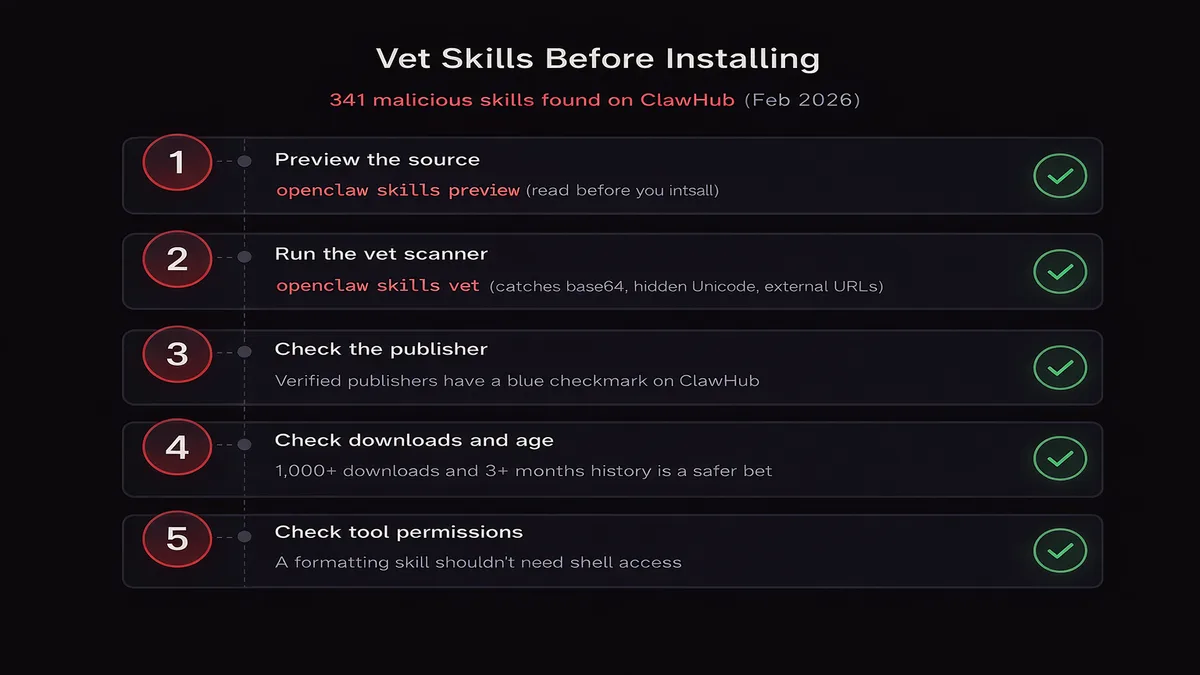
My vetting process before installing anything:
1. Preview the source first
openclaw skills preview tavilyThis dumps the full SKILL.md to your terminal without installing anything. Read it. If you see base64-encoded strings, external URLs in the instructions, or anything that mentions sending data somewhere, walk away.
2. Run the vet scanner
openclaw skills vet tavilyThe built-in scanner checks for suspicious patterns: base64 encoding, hidden Unicode, external HTTP endpoints in instruction text, environment variable references that don't match the skill's stated purpose. Not bulletproof, but it catches the lazy attacks.
3. Check the publisher
Verified publishers on ClawHub have a blue checkmark. It doesn't guarantee safety, but it means someone at ClawHub confirmed the publisher's identity. Anonymous publishers with no verification are higher risk.
4. Look at download counts and age
A skill with 10,000 downloads and 6 months of history is safer than one with 12 downloads from last week. Not a guarantee, but a useful signal. The ClawHavoc skills mostly had under 500 downloads each.
5. Check tool permissions
If a skill's frontmatter declares tools: [shell, filesystem] but it's supposed to be a "formatting" skill, that's a red flag. Why does a formatting skill need shell access?
OpenClaw v2.5+ has a VirusTotal integration that can auto-scan skill files. Enable it in openclaw.json:
{
  "security": {
    "skill_scan": true,
    "virustotal_api_key": "your-vt-key"
  }
}
Worth the extra 2 seconds per install.
The SKILL.md file explained
I'll use a simplified version of the Tavily search skill as an example:
---
name: tavily
version: 1.2.0
description: "Web search via Tavily API"
author: "tavily-team"
tools:
  - name: tavily-search
    type: mcp
    server: tavily-mcp
    config:
      api_key_env: TAVILY_API_KEY
permissions:
  - network
---

You have access to a web search tool called tavily-search.

## When to search
- The user asks a question about current events, recent data, or anything
  after your training cutoff
- The user explicitly asks you to search or look something up
- You are uncertain about a factual claim

## How to search
- Use clear, specific queries. "OpenClaw v2.5 release date" not "openclaw new"
- Search once with a good query rather than multiple vague attempts
- Cite your sources: include the URL where you found the information

## When NOT to search
- Questions about well-known facts you're confident about
- Subjective opinions or creative tasks
- When the user specifically says not to
The frontmatter fields:
| Field | What it does |
|---|---|
name | Unique identifier. Must match the folder name |
version | Semver. ClawHub uses this for updates |
description | One line. Shows in openclaw skills list |
author | Publisher name or handle |
tools | MCP servers the skill needs. OpenClaw auto-configures these on install |
permissions | What the skill is allowed to access: network, filesystem, shell |
The body is plain markdown. Write it like you're giving instructions to a smart junior developer. Be specific. Give examples of what to do and what not to do. Set boundaries.
Tips for writing good skill instructions:
- Stay under 500 words. Every word costs tokens on every single message
- Use examples. "Search for 'OpenClaw v2.5 release date' not 'openclaw new'" teaches better than "use specific queries"
- Define boundaries. Tell the agent when NOT to use the skill. Without boundaries it'll trigger on everything
- Test with edge cases. Ask your agent weird questions after installing and see if the skill triggers correctly
8 skills worth installing first
Remember when I said most of the 3,200 skills are junk? I went through 30+ over a month. Installed each one, used it for at least a week, and disabled the ones that caused problems or just weren't worth the token cost. Eight survived.
Capability Evolver (35K downloads) The most popular skill on ClawHub. It tracks patterns in your conversations and adapts the agent's behavior over time. After a couple weeks, my agent started formatting code the way I like without me asking. Token cost is ~1,200, which is on the heavier side, but the productivity gain justifies it.
openclaw skills install capability-evolverGOG (Google Workspace) Gmail, Calendar, Drive access through your agent. I use this daily for triaging email and checking my schedule. Needs OAuth setup the first time, just follow the prompts after install.
openclaw skills install gogTavily (web search) Makes your agent actually useful for research. Without Tavily or something similar, your agent is stuck with its training data. Needs a free API key from tavily.com.
openclaw skills install tavilyObsidian (note-taking) Reads and writes to your Obsidian vaults. If you keep notes in Obsidian, just install it. I use it to dump meeting summaries directly into my vault.
openclaw skills install obsidianWacli (16K downloads) WhatsApp CLI integration. If you bound an agent to WhatsApp, this gives it richer control over message formatting, media sharing, and group management.
openclaw skills install wacliByteRover (16K downloads) Code analysis and review. Point it at a file or a repo and it'll break down what the code does, flag issues, suggest improvements. I keep this active on my coding agent only, not on all agents. No need to waste tokens on non-coding conversations.
openclaw skills install byteroverTask Manager Structured TODO tracking inside conversations. Your agent maintains a task list and checks things off as they're completed. Simple but surprisingly useful for long multi-step conversations.
openclaw skills install task-managerMemory Persistent memory across conversations. The agent remembers things you've told it previously. Token cost is high (~1,400) because it injects a summary of past interactions into every message. I keep this disabled on most agents and only enable it on my personal assistant agent where continuity matters.
openclaw skills install memoryTroubleshooting
"Skill not found" during install
Names are case-sensitive on ClawHub. Tavily won't match tavily. Search first with openclaw skills search tavily to get the exact name.
Skills not loading after install
Two things to check. Folder permissions on ~/.openclaw/skills/ (the gateway process needs read access) and whether you restarted the gateway. openclaw gateway restart. I forget this about once a week.
Two skills giving conflicting instructions
This happens more than you'd expect. Two skills telling the agent to format output differently, or one skill saying "always search" while another says "minimize tool usage." Disable one: openclaw skills disable <name>. Check which skill is causing the conflict by disabling them one at a time.
Context window overflow, slow or degraded responses Too many skills active at once. Check your total:
openclaw skills statsIf total tokens exceed ~10,000, start disabling skills you don't need on that agent. You can enable different skills for different agents. Not every agent needs every skill.
Debugging gateway errors and MCP misconfigs gets old fast. OpenClaw VPS handles server management so you can focus on building agents, not fixing infrastructure.
MCP server errors after installing a skill
The skill requires an MCP server that isn't configured. Check the skill's tools field:
openclaw skills preview <name> | head -20Look for the tools section in frontmatter. You may need to install the MCP server separately or set an API key. The skill description on ClawHub usually documents required setup.
Ready to run skills without the server headaches?
OpenclawVPS gives you a managed OpenClaw instance with one-click deploys, automatic updates, and multi-agent support out of the box. Install skills, bind agents, and skip the infrastructure. Once your skills are running, connect Telegram and use them all from your phone. You can even run the full gateway on an Android phone if you want a portable setup.