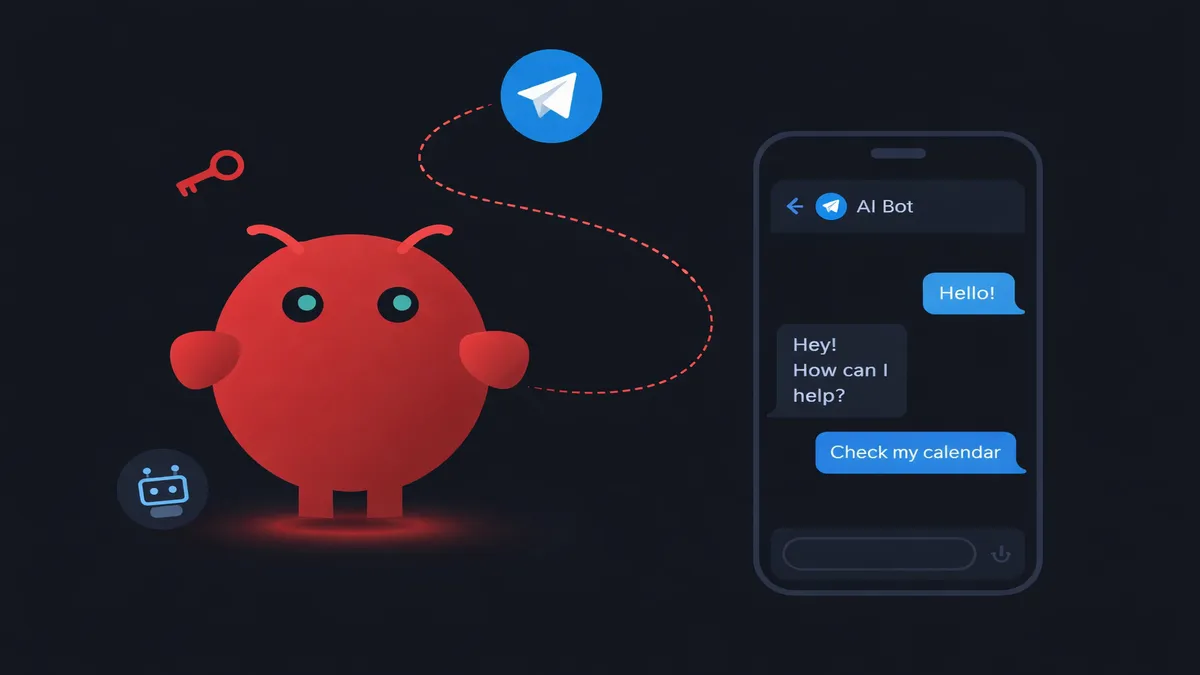
TL;DR: Open Telegram, search for @BotFather, create a new bot, copy the token, paste it into your OpenclawVPS dashboard. Send your bot a message. Done. The whole thing takes about 5 minutes and you don't need to touch a terminal, write any code, or edit config files. If you're on OpenClaw VPS, it's one field and a save button.
Adding Telegram took me five minutes. Most of that was picking a bot username.
If you have OpenClaw running and want to message your AI assistant from your phone, this is the full walkthrough. No terminal, no config files, no code. Telegram is the universal first channel in the OpenClaw first-week plan, so you are doing this in the right order.
What you need before you start
Four things:
- A working OpenClaw instance (self-hosted, through OpenClaw VPS, or even running on your Android phone)
- The Telegram app on your phone (or desktop, both work)
- A Telegram account
- 5 minutes
That's it. If your OpenClaw instance is already running and you can see the dashboard, you're good to go.
Don't have OpenClaw yet? OpenClaw VPS gives you a managed instance with Telegram support built in. One-click setup, automatic updates, your AI assistant is online in under a minute.
Create your Telegram bot (the BotFather part)
Every Telegram bot starts with BotFather. It's Telegram's official tool for creating bots. Free, instant, no approval process.
-
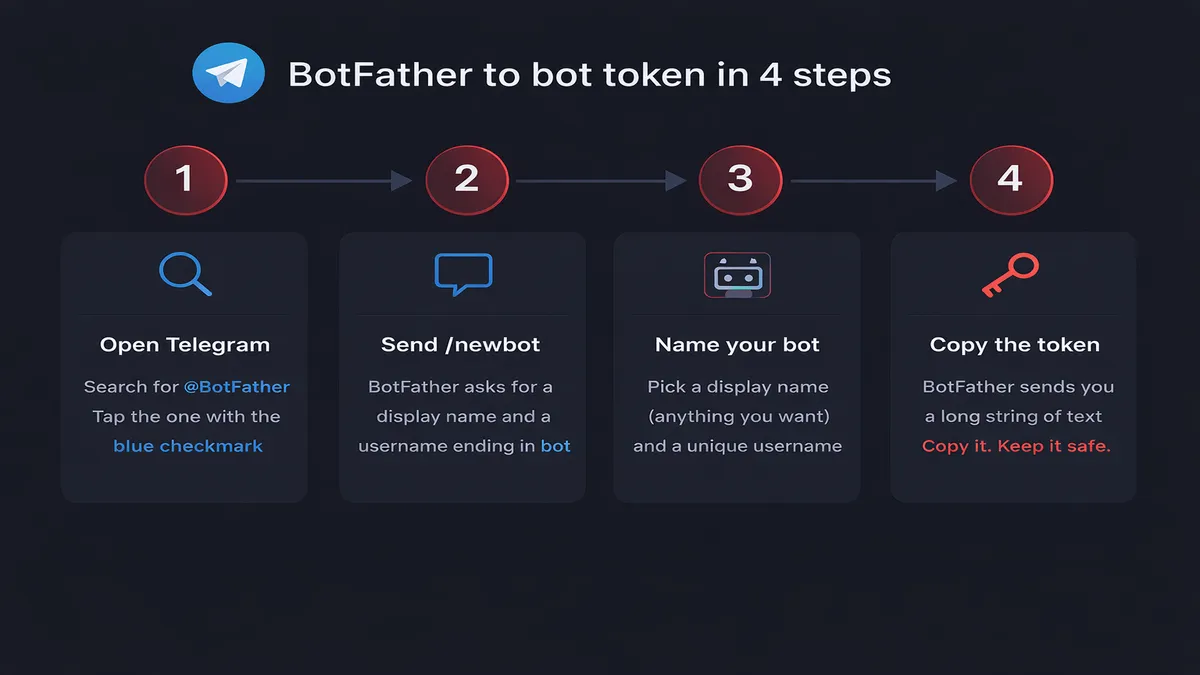
Open Telegram and search for @BotFather in the search bar. Look for the one with the blue checkmark. Tap on it to open a chat.
-
Type /newbot and send it.
-
BotFather asks for a display name. This is what people see in their chat list when they find your bot. Pick something you'll recognize. "My AI Assistant" works. So does "Work Bot" or "OpenClaw Bot" or your dog's name. Doesn't matter much, you can change it later.
-
Pick a username. This one has rules. It must end in "bot" and it can only use letters, numbers, and underscores. Something like myai_assistant_bot or openclaw_work_bot. If the username is taken, BotFather tells you and you try another one. I went through three before I found one that wasn't claimed.
-
BotFather sends you a message with your bot token. It looks like a long string of numbers and letters separated by a colon. Something like
110201543:AAHdqTcvCH1vGWJxfSeofSAs0K5PALDsaw. Copy it and keep it somewhere safe.
This token is basically a password for your bot. Anyone who has it can control the bot. Don't paste it in public channels, don't screenshot it and post it on social media, don't commit it to a public GitHub repo. Treat it like a password. Because it is one.
Connect the bot to OpenClaw
This is where the two paths split depending on how you run OpenClaw.
If you're on OpenclawVPS (the easy path):
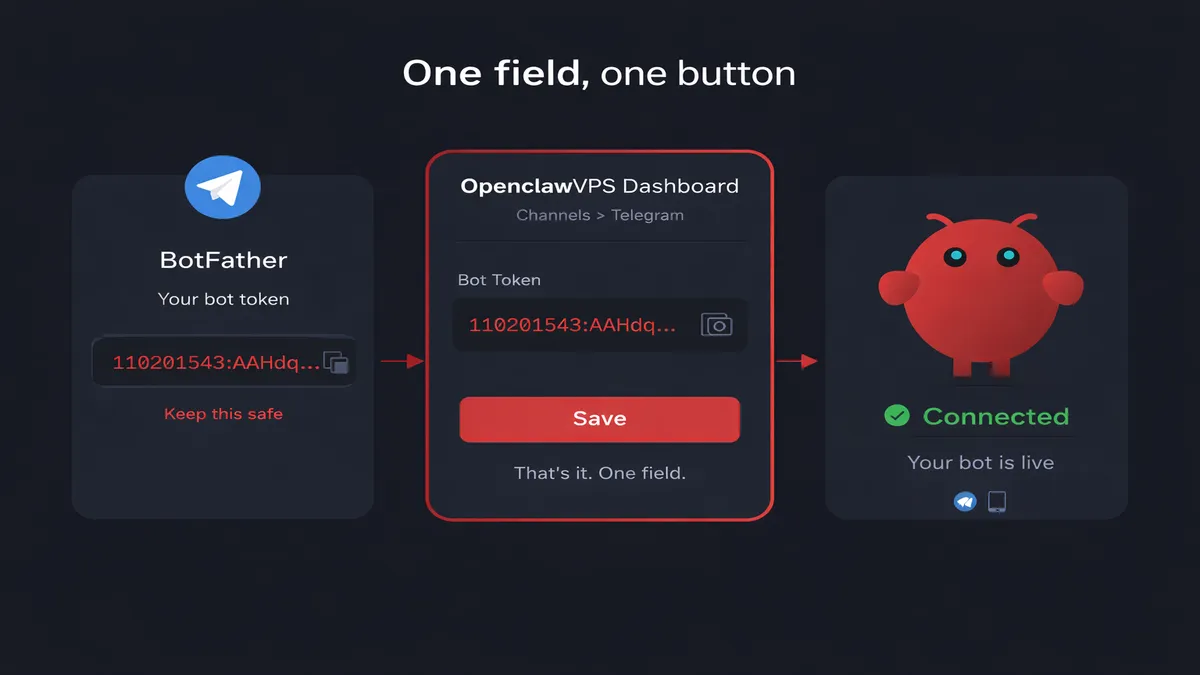
- Log into your dashboard
- Go to the channels section
- Click on the Telegram option
- Paste your bot token into the token field
- Hit save
That's the whole thing. One field, one button. OpenclawVPS handles the connection, the webhook setup and the routing behind the scenes. Your bot is live.
If you're self-hosting: The token goes into your OpenClaw config file under the Telegram channel settings. You'll also need to enable the Telegram plugin and restart your gateway. The add agent guide covers the config structure if you need a refresher on where things go.
For the rest of this article I'm going to assume you're on the dashboard path, since that's what most people reading this are using.
Send your first message
-
Open Telegram and search for your bot by the username you picked earlier. Tap on it.
-
Send /start to kick things off.
-
If pairing is enabled (the default on OpenclawVPS), the bot replies with a pairing code. This is a security measure. It prevents random people from finding your bot and chatting with your AI assistant.
-
Copy that code and go back to your OpenclawVPS dashboard. There's a pairing approval section where you paste the code and confirm.
-
Once approved, you're connected. Send a real message. "Hey, what can you do?" or "What's the weather like today?" or just "Hello."
Here's what happens behind the scenes:
- You type a message in Telegram
- Telegram sends it to your OpenClaw instance through the bot connection
- Your agent picks it up and processes it with whatever AI model you've configured
- The reply shows up in the Telegram chat, usually within a few seconds
From your side it just looks like texting. Same agent, same model, same tools. Just a different input method.
If you set up skills or MCP servers on your agent, those work too. Send a photo and ask for a summary. Ask it to check your calendar. Ask it to search the web. Whatever tools your agent has access to, they all work through Telegram the same way they work through the dashboard. You can even trigger browser automation from a Telegram message.
That expense receipt trick from the AI assistant guide? You'd do it by snapping a photo and sending it to your bot right here.
Make it actually useful (add tools)
Right now your Telegram bot is a chatbot. It replies to messages. Fine for basic questions. But the real value comes when you give it tools.
Skills let your agent do things like search the web, read files, manage calendar events and send emails. Browse the skills marketplace to see what's available, or check the skills guide for the install process.
MCP servers connect your agent to external services, databases, APIs and just about anything else. Over 10,000 integrations exist. The MCP guide has the details.
Multiple agents let you split jobs. One agent for work stuff, another for personal. Each with its own personality, tools, and model. You can bind different agents to different Telegram chats or groups. The agent guide covers setting that up.
The difference is night and day. Without tools, your bot answers questions. With tools, it does things. Checks your schedule, logs expenses, searches the web, drafts emails. All from one chat window. The everyday-life use cases that stick (morning briefings, voice-note journals, meal plans, household command center) are the ones most operators end up running on this exact Telegram thread.
Every OpenclawVPS plan comes with skills pre-installed. Pick a plan and your bot works out of the box. No setup, no config.
Telegram tips
Set a profile photo for your bot. BotFather lets you do this with the /setuserpic command. Send it to BotFather, pick your bot, and upload a picture. Small thing, but it makes the bot feel less robotic when you're scrolling through your chat list. Without a photo it's just a grey circle with a letter.
Pin the chat. You'll use it more than you think. Long-press the chat and pin it so it stays at the top of your Telegram list. I moved mine above my family group chat after the first week. And my wife noticed.
Be careful with groups. If you add the bot to a group chat, it can see every message in that group by default. That's fine if you want it to. Not fine if you added it to your friend group and it starts replying to everyone. Either set privacy mode through BotFather (/setprivacy) or create a dedicated group with just you and the bot in it.
Voice notes work. If your agent has transcription skills enabled, you can send voice messages and it'll process them. I do this when I'm driving. Quicker than typing.
Troubleshooting
If something isn't working, check these three things first.
Bot doesn't reply at all. Most likely the token is wrong or the connection didn't save properly. Go back to your dashboard, delete the token, paste it again and save. If you're self-hosting, make sure the gateway restarted after you changed the config.
Pairing code never shows up. Send /start to the bot first. If you just type a regular message before /start, some setups won't trigger the pairing flow. Also make sure the Telegram channel is enabled in your dashboard. Not just configured.
Bot replies but can't use tools. The Telegram connection is working fine. The issue is on the agent side. Your agent needs skills or MCP servers configured to use tools. Telegram is just the messaging layer. It passes your message to the agent, and the agent does (or doesn't do) the rest.
If none of that helps, the OpenClaw community Discord is active and people are generally quick to help with Telegram setup questions.
Start messaging your AI assistant
Five minutes. That's all it took. Your AI assistant now lives in Telegram, one message away, no browser or dashboard required.
If you haven't set up OpenClaw yet, OpenClaw VPS gets you a running instance with Telegram support in under a minute.