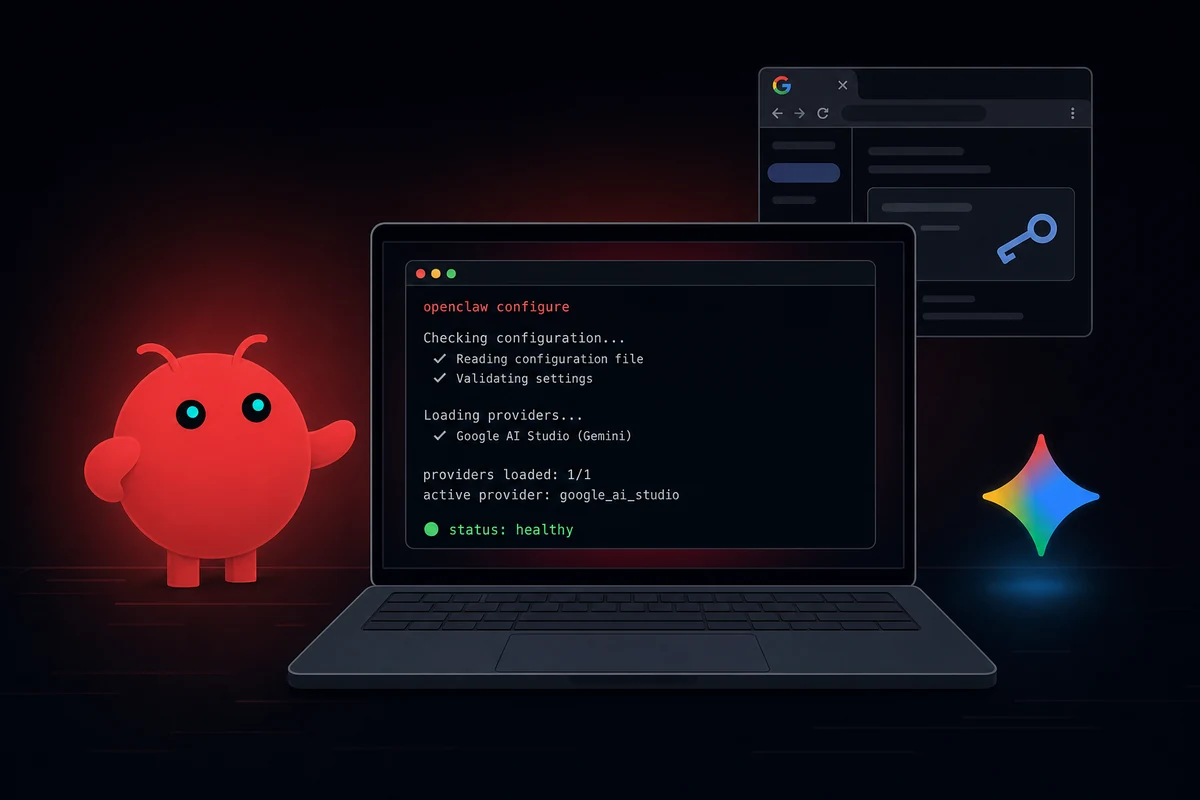
TL;DR: OpenClaw connects to your calendar through four paths. The gog skill is the Google route. CalDAV with vdirsyncer and khal covers iCloud, Fastmail, and Nextcloud. An MCP server like Composio handles OAuth for you. A read-only ICS feed is the lightweight fallback. Pick gog if you live in Google Calendar. Pick CalDAV if you don't.
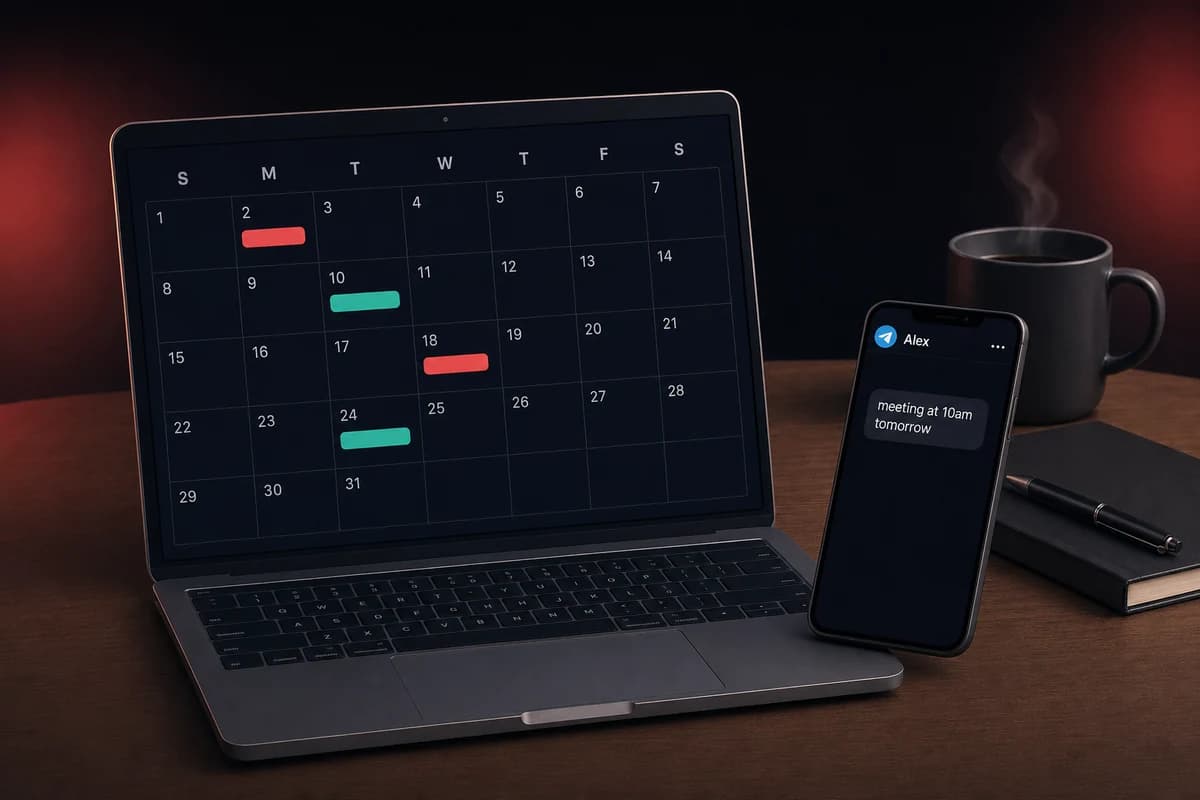
Most readers want the Google path, so that is where this guide leads. Once it is connected through the gog skill, the assistant reads your events and creates them from chat ("schedule a meeting with Sarah tomorrow at 3pm").
It also runs morning briefings that pull calendar, email, and tasks into one Telegram or WhatsApp message.
The setup itself is short. Install OpenClaw, pick your channel and model, enable the calendar skill, sign in with Google.
The part nobody warns you about is timezone handling. Three closed GitHub issues (#11552, #28958, #67568) document the same pattern. If your Google Calendar primary timezone is America/Mexico_City, the gog calendar tool fails before any API call. The agent also tends to guess days-of-week from a timezone string instead of a resolved date. The fixes are small once you know what to look for.
The first useful thing the assistant ever did for me was send my brother a meeting invite from a one-line Telegram message. The second was tell me, with a straight face, that March 1 was a Saturday when it was actually Sunday.
Connect OpenClaw to Google Calendar with the gog skill
The gog skill is the most direct way to wire OpenClaw to Google Calendar. It is a small command-line bridge between OpenClaw and the Google Workspace APIs that stores its credentials in your local system keychain.
You enable it from the OpenClaw skill catalogue, walk through Google Cloud Console once to get an OAuth credential, then never touch the auth flow again.
Before you start, you need three things in place:
- A Google account with Calendar turned on. Almost everyone has this.
- OpenClaw installed on a machine that will be running when you want the assistant to do work for you.
- A messaging channel set up so the bot can talk to you, usually a Telegram bot setup or WhatsApp on your phone.
If the messaging side is not set up yet, do that first. Seeing the bot reply to a real message is the part that makes the rest worth it.
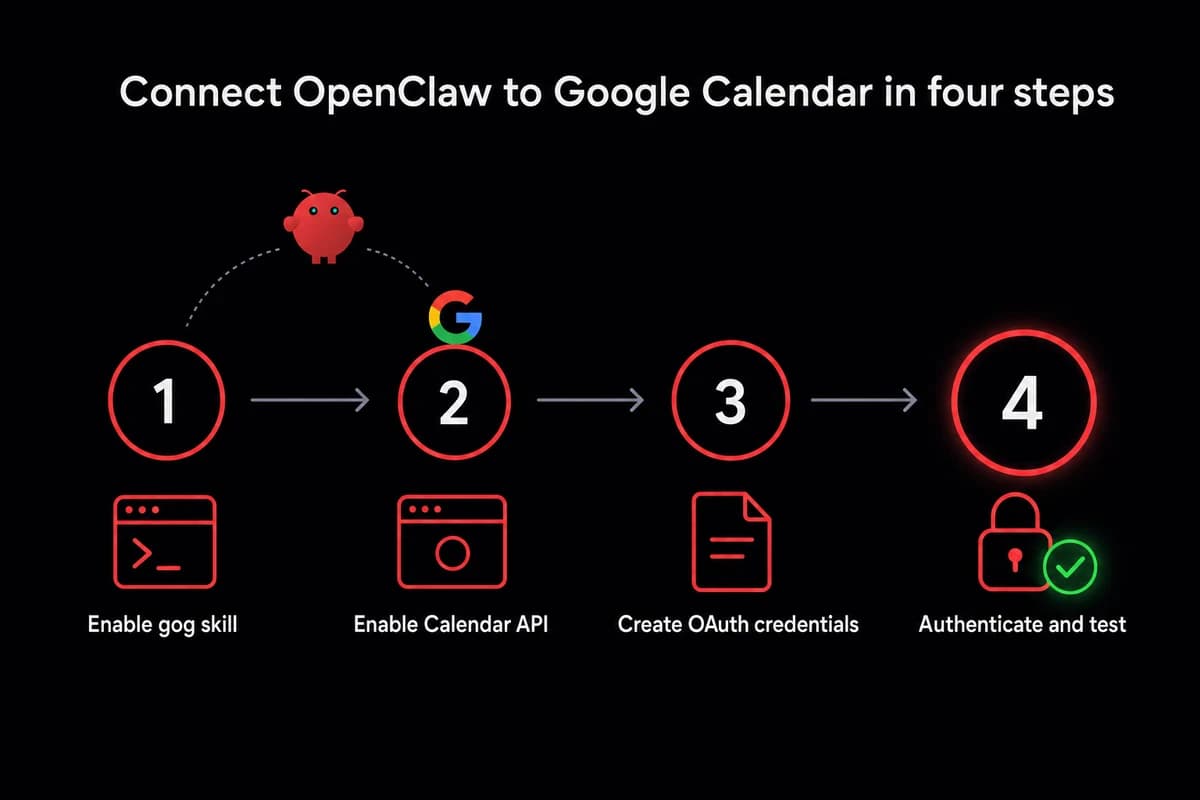
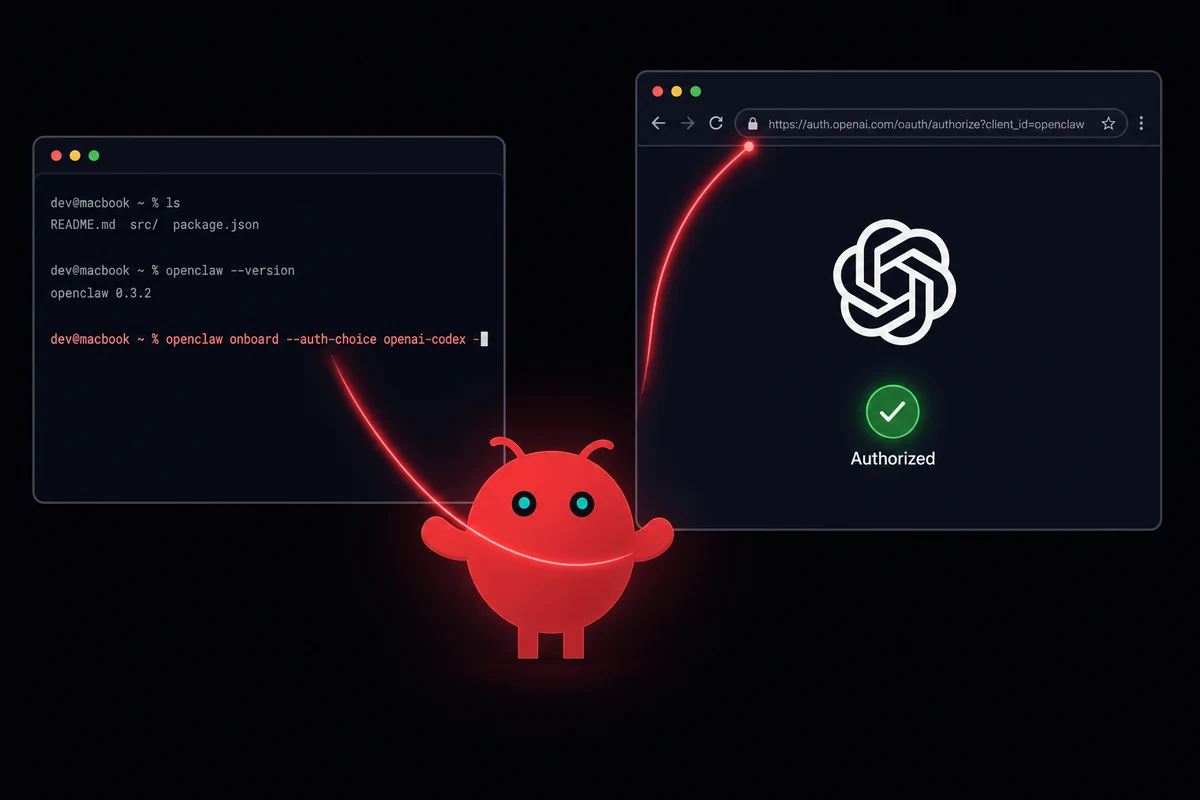
Step 1. Enable gog and the calendar skill in OpenClaw. Run openclaw onboard if this is a fresh install, or open the OpenClaw dashboard if it is already running. Browse the skill catalogue.
Tick the gog skill (the Google Workspace bridge) and the calendar skill. OpenClaw will install the missing dependencies and register both skills with the agent. If you want to enable the gog skill from the dashboard later, the skill catalogue UI is the same place.
Step 2. Get an OAuth credential from Google Cloud Console. This is the part that feels intimidating the first time. The actual sequence is four clicks across two screens:
- Open Google Cloud Console in a browser. Create a new project (the name does not matter, "openclaw-calendar" works).
- On the project dashboard, search for "Calendar API" in the search bar at the top and click Enable.
- Go to APIs & Services → Credentials → Create Credentials → OAuth client ID.
- When it asks for an application type, pick "Desktop app". Give it a name. Download the JSON file it gives you back.
Step 3. Sign in. Hand the downloaded JSON to gog. The exact command varies by which gog packaging you installed, but the pattern is the same: gog reads the JSON, opens a Google sign-in tab in your browser, you click Allow, gog stashes the token in your OS keychain.
The credentials live in the keychain from that point on. If the browser tab times out, just run the command again. The Google side does not penalise repeated attempts.
Step 4. First test. Open your Telegram or WhatsApp chat with the bot and send the canonical demo phrase: "send an email to my brother reminding him we are meeting tomorrow 10am at our parents house also send a calendar invite."
The bot should respond with something like "done, email sent, invitation sent." Open Google Calendar on the web. The event should be there on tomorrow's date.
Once it is connected, here is what you can ask it:
- Natural-language event creation: "schedule a meeting with Sarah Friday at 3."
- Free-busy lookups: "am I free Thursday afternoon?"
- Agenda summaries: "what is on my calendar today?"
- Photo-to-calendar: snap a photo of your kid's school calendar and message it to the bot. The agent reads the image, extracts the dates, and creates the events.
The combined Gmail connection prompt above is the high-leverage one. It lets you draft an email and create the matching invite from a single chat message.
To be honest, Google already does a lot of this through Gmail's "found in your email" calendar suggestions. The difference with OpenClaw is that it stitches in the messaging channels too. It can scrape your texts and your WhatsApp messages, not just your Gmail inbox. That is the bit Google's native suggestions miss.
What permissions you are actually granting
Google's OAuth screen will ask you to grant a scope. The two that matter are read-only and read-write.
Read-only lets the agent look at your events but not create or edit them. Read-write lets it do everything, including delete. Pick read-only the first week while you build trust in the bot's behaviour. Promote to read-write when you actually need it to create invites.
You can revoke and re-grant from your Google account's third-party-access page at any time. The security best practices guide goes deeper on which scopes to grant for which channels.
Containment pattern: a dedicated assistant Google account
If you want a clean separation between "the agent's view of my calendar" and "my actual Google account", a common containment pattern is to create a second Google account. Share only the calendars you want the agent to see, and point gog at the second account.
The agent gets a scoped view; your real account stays untouched. It adds a few minutes of setup and one extra Calendar sharing step, but it makes the blast radius of a misbehaving agent much smaller. Worth it for a family-shared bot.
If "OAuth credentials" still sounds like a lot of friction, the managed path skips it entirely. The next CTA is the short version.
Babysitting Google Cloud Console projects and OAuth tokens gets old. OpenclawVPS provisions a dedicated VPS in 47 seconds with OpenClaw, the gog skill, and a pre-configured timezone all in place. You sign in from the in-browser remote desktop and you are done. OpenClawVPS Starter is $19/month with a 3-day money-back guarantee.
The three non-Google paths to your calendar
CalDAV, MCP servers, and ICS feeds cover the readers who cannot or do not want to take the gog route. If you do not use Google Calendar, or you do not want to run Google Cloud Console, or you only need read access to a single calendar, one of these three paths fits.
| Path | Best for | Provider | Setup difficulty |
|---|---|---|---|
| gog | Google Calendar users | Google only | Medium (OAuth flow once) |
| CalDAV (vdirsyncer + khal) | iCloud, Fastmail, Nextcloud, Posteo | Provider-agnostic | Medium (Linux-only at time of writing) |
| MCP server (Composio) | OAuth handled by a third party | Google, Outlook, others | Easy (browser flow only) |
| ICS feed | Read-only, no auth, lightweight | Any calendar that publishes ICS | Easy (paste a URL) |
Table: The four ways to connect OpenClaw to your calendar
CalDAV with vdirsyncer and khal. This is the privacy-first path and the most common non-Google option. Your credentials stay on your machine. There is no third party in the loop. It works with anything that speaks CalDAV: iCloud, Fastmail, Nextcloud, Posteo, plus a few others.
The stack is two small Linux tools. vdirsyncer keeps a local folder of .ics files in sync with your remote calendar. khal reads and writes those local files. The named caldav-calendar skill on the OpenClaw catalogue wires both of those into the agent.
The quick path is three steps:
- Install vdirsyncer and khal on the machine where OpenClaw runs (your package manager probably has both).
- Point vdirsyncer at your CalDAV provider and run an initial sync.
- Enable the
caldav-calendarskill in OpenClaw.
Then you can ask the bot things like "what is on my Nextcloud calendar Friday?" One honest caveat: the caldav-calendar skill is Linux-only at the time of writing.
If you are running OpenClaw on a Mac and you want CalDAV, you will be doing some manual wiring. If you are on a Raspberry Pi or any other small Linux box, you are in the supported lane.
MCP server (Composio or self-hosted). This path uses a separate process that brokers the OAuth flow on your behalf. Composio is the best-known managed option. It holds the Google token, exposes a clean API, and lets you point OpenClaw at it through Model Context Protocol.
It fits when you do not want to set up Google Cloud Console yourself, when you are already running other MCP servers, or when you are integrating across a team. The trade-off is that your calendar token now lives with a third party.
If that bothers you, a self-hosted Google Calendar MCP server is also available. But at that point you are essentially doing the gog setup with extra steps.
ICS feed. The ICS path is the read-only fallback. Google Calendar, iCloud, and most other calendar providers will give you a webcal:// or https://...ics URL for any calendar you want to share. Paste that URL into OpenClaw's config and the agent can poll it. Zero OAuth, zero local skill setup, zero write access.
It is the right call when you want to expose a single calendar to the agent for read-only queries without granting create-or-edit permissions. If you want something even lower-fidelity than that, a lo-fi calendar via memory files works too. The agent tracks events in markdown files without any live calendar API at all.
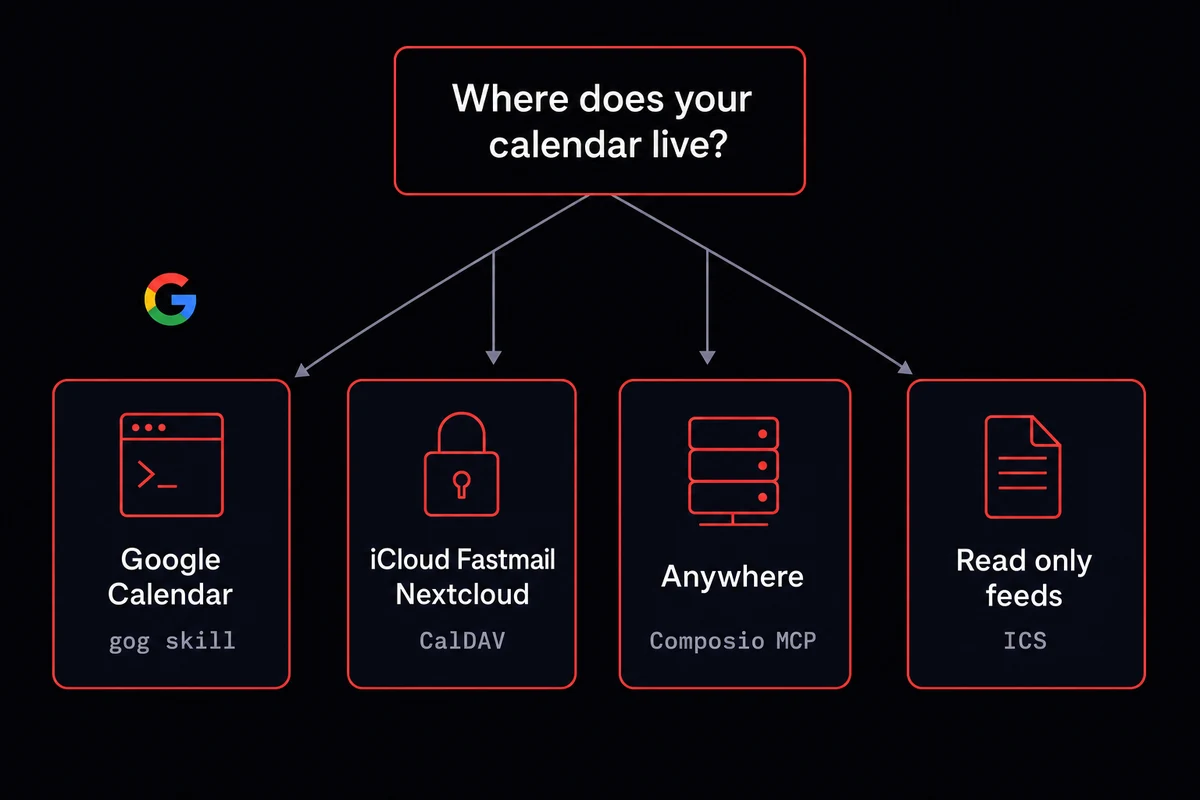
If you live in Google Calendar, gog above is the answer. If you do not, CalDAV. If you want zero local config and you do not mind a third party holding the token, MCP. If you only need to query, ICS.
The morning briefing pattern that makes calendar access worth it
The morning briefing is the workflow that actually changes how the day starts. The agent pulls calendar plus email plus tasks plus weather into one chat message at 7am every weekday. That is the killer app of giving an AI agent calendar access, and it is the workflow that converts skeptics.
The setup uses OpenClaw's scheduling layer, which has two flavours. Cron jobs run at a specific time and start a fresh, isolated session for the task. Heartbeat runs every 30 minutes and keeps the agent's full session context.
For the briefing pattern, cron is the right choice. It runs precisely when you want, it does not interfere with anything else, and it makes the briefing a discrete event you can debug if it breaks. The stats and metrics you can pipe into the same morning message round it out for the operations-minded reader.
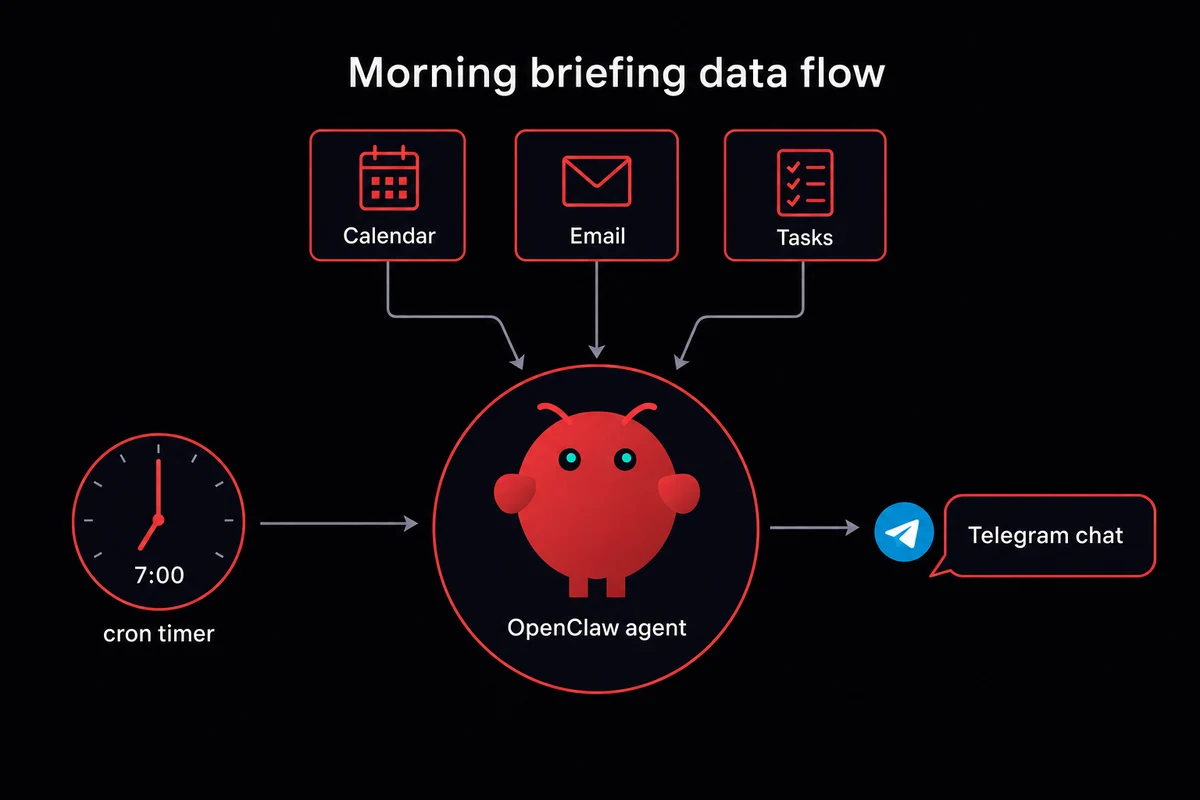
The worked example is short. You ask the bot, once, in chat: "every weekday at 7am, give me my morning briefing." The agent registers a cron job through OpenClaw's cron-jobs panel.
Cron is what makes "do this on a schedule" actually work. Anything scheduled or recurring gets registered there, and you can inspect the list when something fires at the wrong time.
The prompt that fires on a schedule needs to be specific enough to be useful. Something like "summarise today's calendar events, top 5 unread emails, and any tasks due today, then send as one Telegram message." The first run will be a little long while the agent figures out the routine. The second one is the thing you actually want.
Some readers run the same pattern across four calendars at once. A morning routine that checks the work calendar, the personal calendar, the shared family calendar, and the kids' school calendars rolls up into the same cron and one synthesised message. The agent does the de-duping and the ordering, so you read one paragraph instead of four calendar tabs.
This is also the workflow that pulls together the WhatsApp delivery side of things. The photo arrives over WhatsApp, the briefing goes out over WhatsApp, and the kid's-calendar-photo trick happens over WhatsApp. The messaging channel is where the value lands. The calendar is one input among several.
The timezone bug nobody warns you about
Timezone handling is the section the other tutorials skip. Three separate GitHub issues describe the same shape of problem, and all three are closed as not-planned, which means a fix is not coming soon.
If you are setting up OpenClaw with a calendar in 2026, these are the three things you would hit in the first month and waste an afternoon on. Now you will not.
| Symptom | Issue # | Workaround |
|---|---|---|
| gog calendar fails with "unknown time zone" | #11552 | Change Google Calendar primary timezone to a zone gog recognises (e.g., America/Chicago for most of Mexico) |
| Agent maps the wrong day-of-week to a date | #28958 | Include the resolved date in your prompt ("on Sunday March 1") |
| Session memory file lands on the wrong date | #67568 | Check today's and yesterday's memory file when troubleshooting |
Table: Three timezone gotchas the docs don't mention
Symptom 1: gog calendar commands fail before the API call. If your Google Calendar primary timezone is America/Mexico_City or America/Cancun, every gog calendar command returns this error: invalid calendar timezone "America/Mexico_City": unknown time zone America/Mexico_City. The command never reaches Google.
The interesting bit is that Gmail commands on the same account work fine, so it is not an OAuth or credential problem. It is the gog calendar tool not recognising the zone string Google sends back.
I burned the better part of an afternoon on this one before I read the error string properly. I had assumed it was an OAuth scope problem and re-did the Google Cloud Console flow twice.
The error literally says "unknown time zone" and I kept skimming past it as if it were a stack trace from somewhere deeper. Two re-auths and a coffee later, I finally changed the Calendar zone setting and the bot worked on the first try.
Symptom 2: the agent guesses the wrong day-of-week. Issue #28958 documents the agent "confidently mapping March 1 as Saturday when it's actually Sunday, and shifting an entire calendar view by one day." The root cause is that OpenClaw's system prompt only ships the timezone string to the agent, not the resolved date. So the agent has to guess, and the guess is wrong roughly as often as it is right.
The workaround is to put the resolved date in your prompt yourself. Instead of "what's on my calendar Friday", say "what's on my calendar on Friday, May 15." Boring. But the agent does not get to guess.
The first time this bit me, I spent the better part of a Friday afternoon convinced my calendar sync was broken. The agent had told me a particular meeting was on Saturday. I checked Google Calendar in the browser and it was Sunday.
I assumed the local copy was stale. I forced a re-sync. I restarted the agent. I cleared the session memory.
Two hours in, I noticed the agent was reading the date correctly, then doing date-to-weekday math in its head and getting it wrong. Embarrassing.
Symptom 3: session memory files use UTC. Issue #67568. If you are in UTC-5 and you start a session at 9pm local time, the session memory file lands on tomorrow's date in the file name. When you go to troubleshoot a session the next morning, you grep yesterday's date and find nothing.
Look at both today's and yesterday's memory files. The agent's heartbeat logic has the same UTC-vs-local mismatch, which is why some scheduled tasks fire an hour off from when you expected.
The two relevant config keys are userTimezone and envelopeTimezone, both in ~/.openclaw/clawdbot.json. Most readers will not need to edit that file directly. The fixes above are what actually works in 2026.
After three timezone bugs and an afternoon lost to memory-file forensics, the managed path looks pretty good. OpenclawVPS sets the timezone deliberately at provision time, runs the gog skill from a fresh install with the OAuth pre-configured, and gives you a fixed environment where these bugs do not surface. Free demo at /demo.
How I run it now
I run OpenClaw on a managed VPS with the gog skill enabled, the timezone set explicitly to my local zone, and a cron job that fires my morning briefing at 7:15am every weekday. The provisioning took 47 seconds.
The Google OAuth flow was already wired into the dashboard, so I did not have to click through Google Cloud Console at all. The briefing arrives in Telegram before I have made the coffee.
If you want to skip the Google Cloud Console gauntlet and the timezone forensics, you are essentially paying for someone else to have already gone through both.
OpenclawVPS provisions a dedicated VPS in 47 seconds with the following ready to go:
- OpenClaw pre-installed
- the gog and CalDAV skills available out of the box
- the timezone set correctly at provision time
- an in-browser remote desktop so you can poke at the config without opening an SSH client
Pricing tiers start at $19 for Starter and run through Pro at $39 and Mac Mini M4 at $99. 3-day money-back guarantee. Free demo at /demo.